Nobody checks before it's live
A teammate updates the refund policy from memory, and customers read the wrong number until someone notices.

Suggested edits
Teammates, scripts, and AI Assist can propose a change to an article without touching the live version. You see each change inline, in the colour of whoever made it, and accept or reject it with one click.
No credit card to start



Why it matters
When several people and tools edit the same articles, wrong answers and lost edits slip through.
A teammate updates the refund policy from memory, and customers read the wrong number until someone notices.
Someone spots an error and posts it in a channel because they aren't sure they should change the article themselves.
A docs sync that writes straight to articles replaces whatever your team changed by hand since the last run.
Suggesting mode
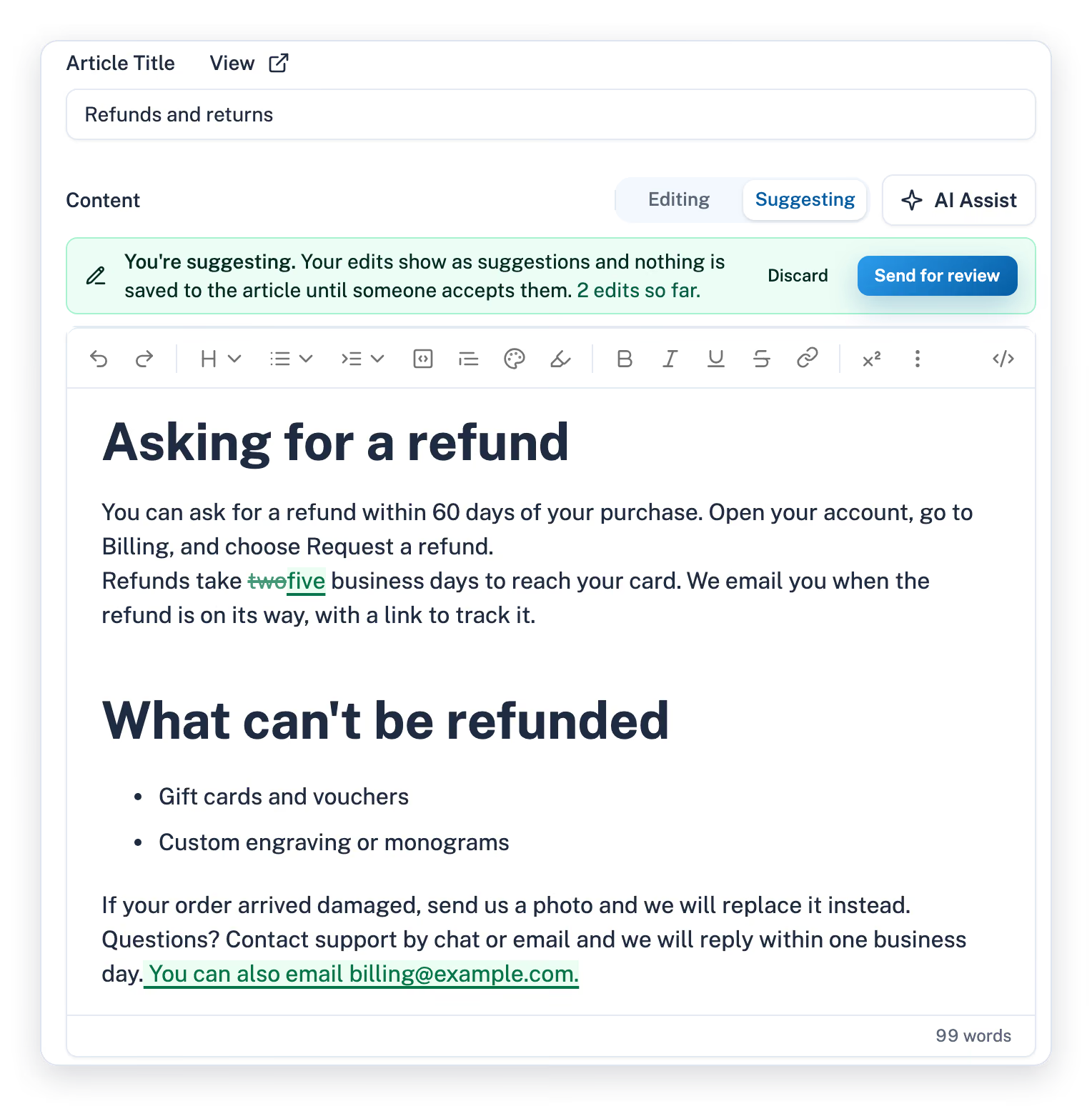
Switch the editor from Editing to Suggesting and type as usual. Your edits show in green, and the published article stays as it is until someone accepts them.
Rewrite a sentence, delete a line, or change the title. Each change is kept as a suggestion.
While you're suggesting, autosave and publishing are off, so a half-finished change can't go live.
Changed your mind? Discard clears your suggestions and puts the article back the way it was.
Send for review
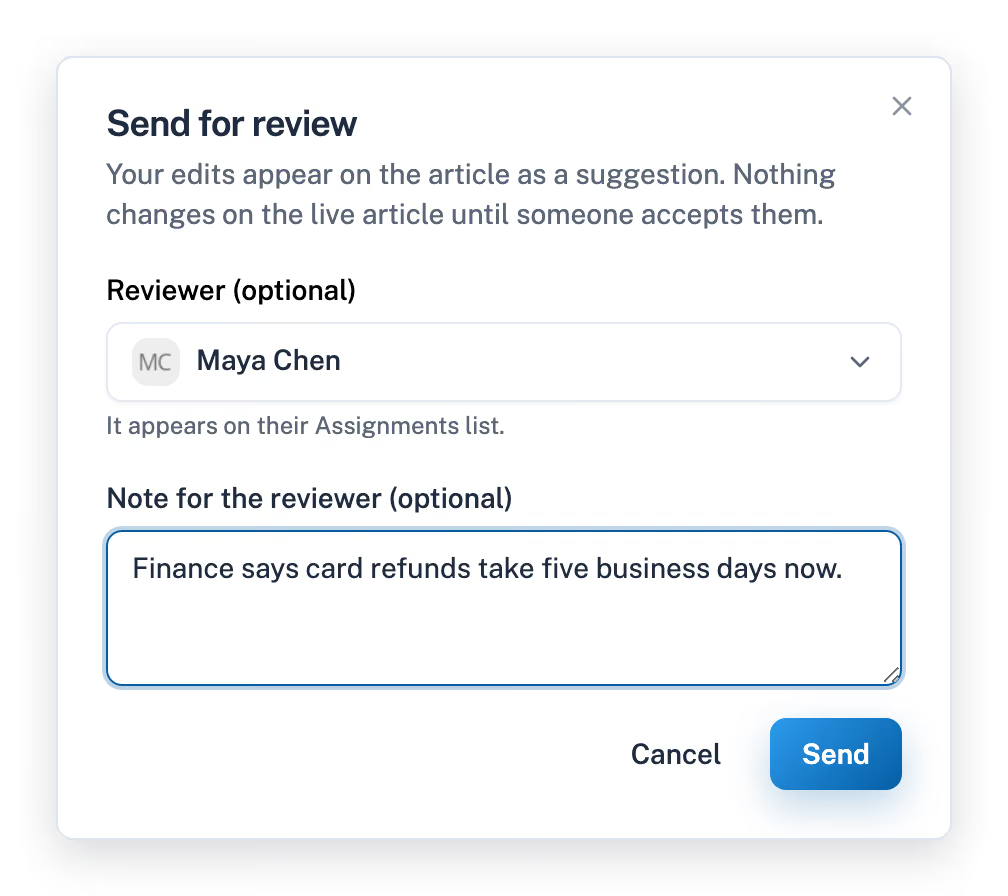
When you're done, send the suggestion for review. Explain the change in a note, and pick a reviewer if you know who should check it.
Choose the teammate who should check the change, and HelpSite lets them know a review is waiting.
With no reviewer, the article's author and last editor get an in-app notification, and the article shows a pending count in your article list.
Review
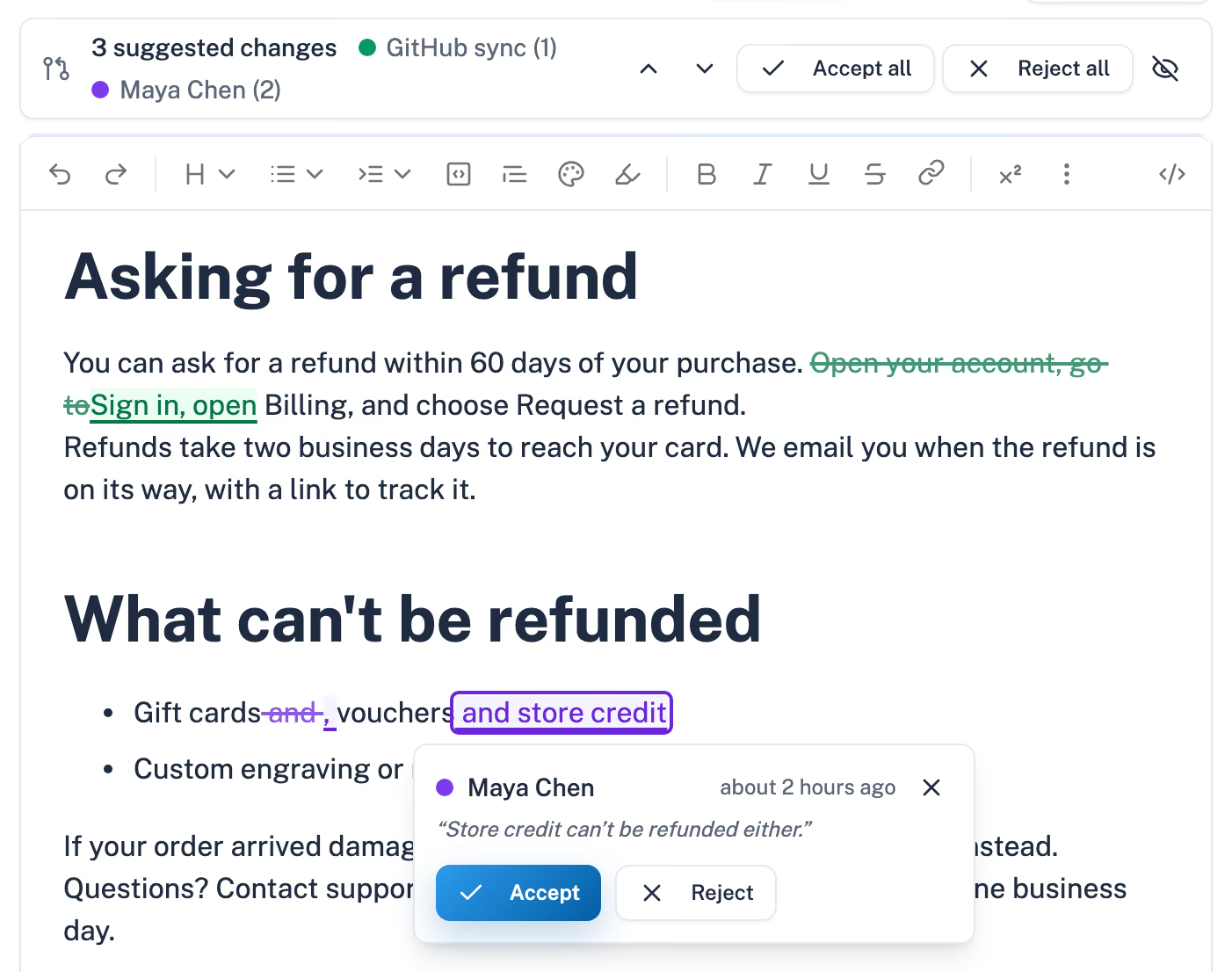
Suggestions appear inside the article, one colour per person or tool. A bar above the editor counts what's left and steps you through each change.
A card shows who suggested it, when, and their note, with Accept and Reject buttons.
When a whole batch is right, take it in one click.
Accepted changes go into a draft. The article goes live when you publish, and version history keeps the earlier version.
If two people change the same words, HelpSite marks it as a conflict. Accepting one drops the other.
API and AI Assist
Anything that can call the HelpSite API can propose changes, so a script that keeps product docs current never writes straight to a live article.
Each suggestion can carry a label and a link, such as a commit, so the reviewer knows where the change came from.
Send the version you last synced. HelpSite lines your change up against edits made in HelpSite since then, so neither is lost.
Run AI Assist on an article that already has text, and its rewrite arrives as suggestions you can accept or reject one by one.
Where it helps
Suggested edits fits anywhere the person who spots the problem and the person who owns the article are two different people.
Suggest, review, and publish when you're ready. Try it free for 14 days.
Common questions about suggesting and reviewing changes in HelpSite.
A proposed change to an article that doesn't touch the published version. It shows inline in the editor, coloured by who made it, and a reviewer accepts or rejects each change. Accepted changes go into a draft that you publish when you're ready.
If you pick a reviewer, HelpSite notifies them. Without a reviewer, the article's author and last editor get an in-app notification, and the article list shows a pending count.
Assignments ask a teammate to do article work and track it through to done. Suggested edits covers changes somebody has already written. Use assignments to request the work, and suggestions to approve the wording that comes back.
HelpSite flags the overlap as a conflict, and accepting one suggestion drops the other. Edits to different parts of the same article don't conflict, so you can accept both.
Yes. Anything with API access can post a suggestion to an article, with a label and a link to where it came from. If the article changed since your last sync, HelpSite merges both sets of edits in the editor so a person can review them.
No. Accepted changes go into the article's draft, and visitors keep seeing the published version until someone publishes, the same as any other edit. Version history keeps every published version, so you can roll back.
Ownership
Assign article work, track requests, and keep documentation from becoming one person's invisible job.

AI workflows
Connect HelpSite to MCP-compatible AI tools so your team can search, draft, update, and organize docs faster.

One place for answers
Create public articles, private SOPs, and team playbooks in a simple editor built for repeated questions.

Launch a public help center, private SOPs, or both in an afternoon.
Start your 14-day free trialNo credit card to start · No per-seat pricing