

If your help docs technically explain everything—yet customers still flood support with “I’m stuck” tickets—you’re not alone. Many SaaS teams write documentation the way they talk internally, not the way real users think. This guide shows how to write documentation for non-technical users so customers can complete tasks confidently without knowing (or caring) how your product works under the hood. You’ll learn practical techniques to simplify language, structure workflows, and reduce confusion—without dumbing anything down.
Why non-technical documentation is hard (and why it matters)
Most SaaS documentation fails for one simple reason: it’s written for insiders. Acronyms, system logic, and feature-first explanations feel efficient to product teams—but overwhelming to end users.
Micro Case: A documented pattern across CX teams is that unclear or overly technical documentation directly increases repeat onboarding tickets. 61% of customers say they want to resolve issues themselves, but will contact support if instructions are unclear or hard to follow. Improving documentation clarity with step-by-step instructions and visuals helps reduce unnecessary follow-up questions during onboarding.
What “non-technical users” actually need from documentation
Non-technical users aren’t less capable—they’re just task-focused. They want to complete an outcome, not learn your architecture.
They typically need:
- Clear next steps
- Familiar language (no internal jargon)
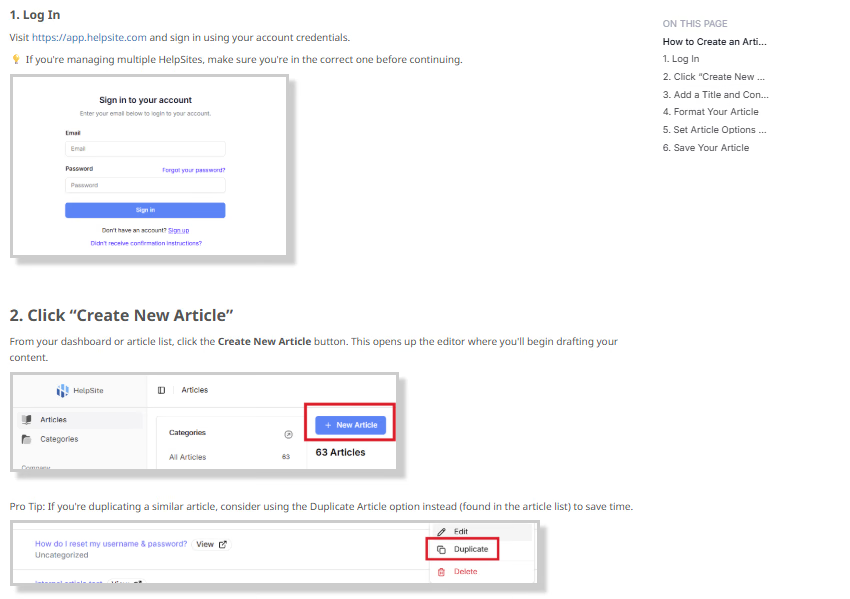
- Visual confirmation they’re in the right place
- Reassurance when something looks different than expected
How to write documentation for non-technical users (core principles)
Start with the user’s goal, not the feature
Feature-led documentation often opens with what something is. User-friendly documentation opens with what it helps them do.
Instead of: “Automations allow users to trigger workflows based on events.”
Try: “Use automations to send a welcome email automatically when someone signs up.”
Use plain language documentation rules
Plain language isn’t about oversimplifying—it’s about removing friction.
The U.S. government’s Plain Language Guidelines recommend:
- Short sentences
- Common words
- Active voice
- Clear headings
Structuring documentation for end users
One task per article
Non-technical documentation works best when each article solves one problem completely.
Bad structure:
- Overview
- System logic
- Advanced settings
- Steps (buried at the bottom)
Good structure:
- What you’ll accomplish
- What you need before starting
- Step-by-step instructions
- What success looks like
- Common mistakes or FAQs
Break steps into scannable chunks
Walls of text cause users to skim—and miss steps.
Example:
- Open Settings
- Click Team
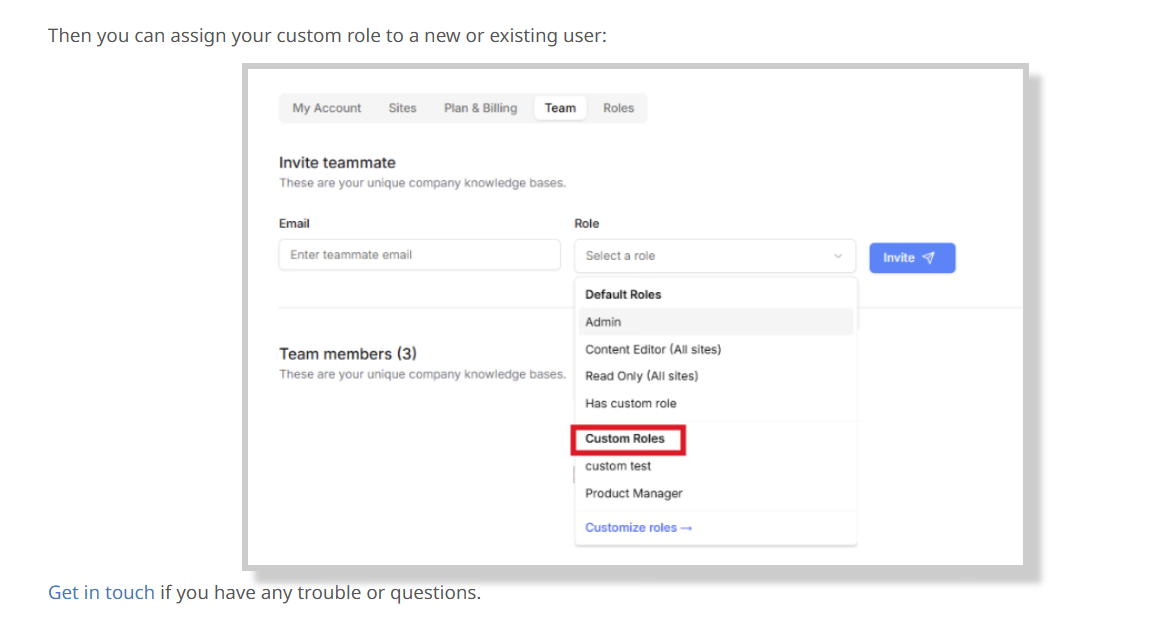
- Select Custom Roles
Show, don’t just tell
Visual confirmation reduces anxiety for non-technical users.
Use examples, not explanations
Examples anchor understanding faster than definitions.
Instead of: “Permissions control access levels.”
Try: “For example, give admins full access, but limit teammates to viewing reports only.”
Where HelpSite fits naturally into this workflow
Clean structure and clarity matter as much as writing. HelpSite’s editor makes it easy to:
- Create step-by-step layouts
- Embed screenshots and videos inline
- Publish updates instantly without engineering help
If you want to turn clearer documentation into fewer support tickets, try building your next guide in HelpSite with your free trial.
Reviewing and testing non-technical documentation
Test docs with someone outside your team
If only internal users review documentation, jargon sneaks back in.
Optimize for findability, not completeness
Users won’t read everything—they search.
For deeper structure guidance, see HelpSite’s pillar article:
Common mistakes to avoid in non-technical documentation
Even well-intentioned teams slip into habits that make documentation harder—not easier—for non-technical users. Avoiding these mistakes can immediately improve clarity and reduce confusion.
Writing like an internal wiki
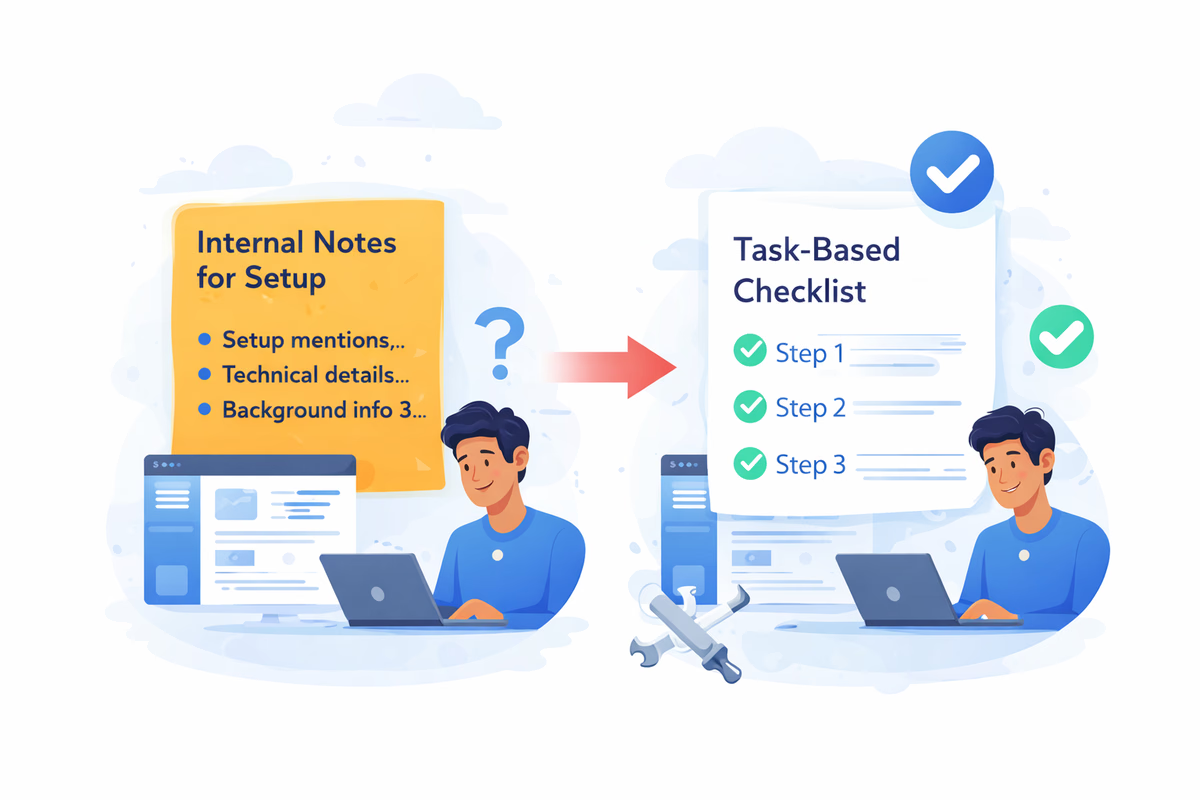
Internal docs explain how systems work. Documentation for end users should explain what to do.
Micro-case: In many SaaS teams, internal setup notes are reused for customer documentation. Users grasp the feature’s purpose but miss key steps. Converting the content into a task-based checklist often improves setup success without additional support follow-ups.
Overloading users with options
Giving users every possible path feels thorough—but often causes decision paralysis.
Assuming users remember previous steps
Non-technical users often jump in and out of documentation.
Publishing once and never revisiting
Outdated documentation is worse than none—it erodes trust.
Measuring success without overcomplicating it
You don’t need advanced analytics to know documentation is working.
Look for:
- Fewer repetitive support questions (trend-based, no stat)
- Shorter time-to-resolution
- Positive customer comments like “This was easy”
Final checklist before publishing
- Can a non-technical user complete the task without guessing?
- Are all steps written in plain language?
- Does each article solve one clear problem?
- Are visuals placed exactly where decisions happen?
When you focus on clarity, empathy, and structure, learning how to write documentation for non-technical users becomes less about writing skills—and more about understanding people.