

You can launch a source-backed AI chatbot on your help center in about 30 minutes if your knowledge base is already in reasonable shape. The five-step path below covers what to prep, what to toggle, and what to check before you publish, so the first customer conversation goes well instead of teaching everyone the wrong lesson.
What is a help center AI chatbot in 2026?
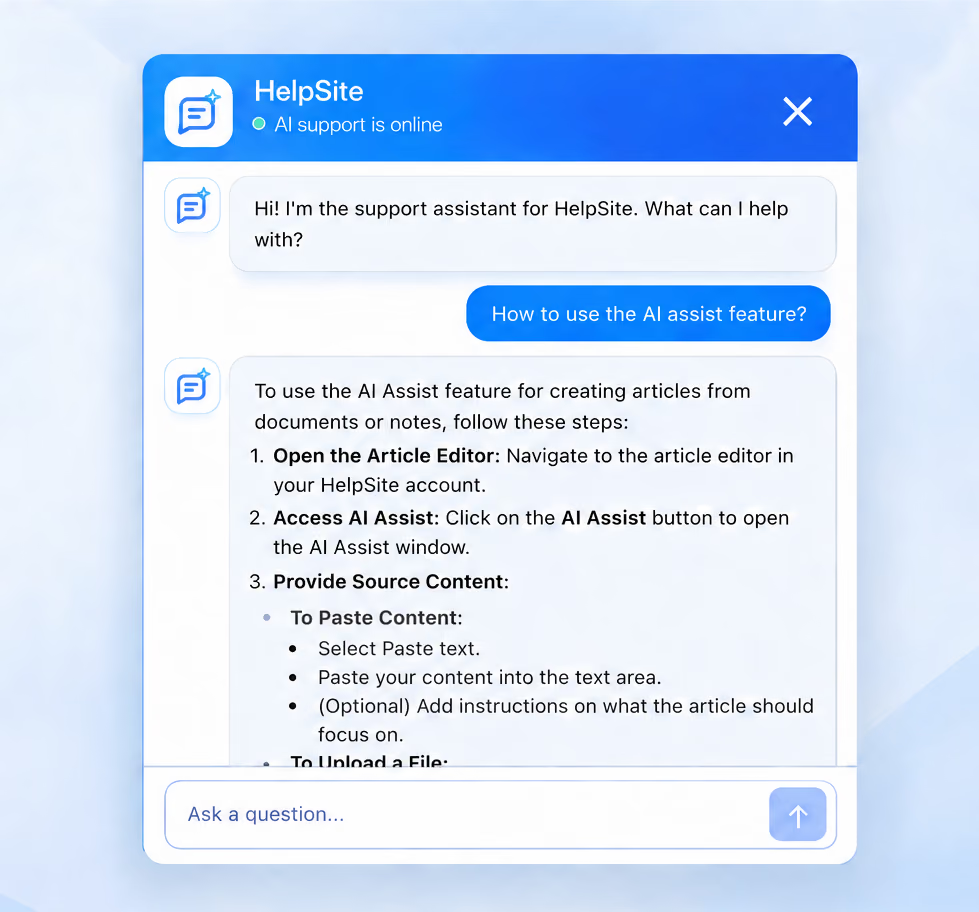
A help center AI chatbot is a conversational interface that answers customer questions by drawing on your published knowledge base articles. Modern chatbots like HelpSite's AI Chatbot are designed to ground answers in your own docs rather than generic model memory, and to link back to the source article so customers can verify.
The setup used to take engineering time. In 2026, if the platform is built for it, the setup is a checklist a support lead can run in one focused sitting.
Before you start: the 10-minute prep
Two prep steps make everything faster:
- Confirm the articles behind your most common questions are current. Open your help center and skim the highest-traffic pieces most likely to support the questions on your test list. Fix any references to old feature names, screenshots, or pricing tiers. Our 30-minute knowledge base audit has a broader review process if you want to make this a habit.
- Write down your top 10 support questions. Use the exact wording customers use in tickets or in your inbox. You will use this list to test the chatbot in step 4.
That is it. If your knowledge base is already reasonably current, you can skip the first prep step. Now the 30-minute clock starts.
Step 1: Enable and sync AI Chatbot (8 minutes)
Sign in to HelpSite, open the site you want to configure, and select its AI tab. Turn on Enable chatbot, then select Sync now to index the site's published articles. Run the sync again after adding or substantially changing articles so the chatbot can retrieve the latest content.
If you run multiple sites, enable AI Chatbot per site so each customer-facing help center has its own bot drawing from its own articles. Internal SOP sites can stay chatbot-free.
The hands-on step takes only a few minutes, although the sync itself can continue longer for a large knowledge base.
Step 2: Add optional chatbot instructions (5 minutes)
Use the Base prompt field to add brief instructions for how the chatbot should respond. For example: "Keep answers concise. If you are unsure, say you could not find the answer." HelpSite limits these optional instructions to 200 words, so focus on the few behaviors that matter most to your customers.
This is also where you can describe your preferred tone in plain language. You do not need a developer or a separate set of fallback controls.
Step 3: Test the source links (2 minutes)
Sourced answers are built into the chatbot experience rather than enabled through a separate setting. Ask a question covered by one of your published articles and confirm that the answer cites the correct source. Open the link and verify that the article supports the response.
Why this matters: source-linked answers are a strong trust signal for customers, and they turn each chatbot response into an auditable one. If a customer questions an answer, they click through to the article. If your support team questions an answer, same path. Trust and verification in one design.
Step 4: Test with real questions (10 minutes)
Now use the 10-question list you wrote during prep. Ask each question in the chatbot exactly as a customer would phrase it.
Score each response in three columns:
- Accurate. The chatbot answered correctly and cited the right article.
- Vague. The answer was generic or partially correct.
- Wrong or refused. The chatbot invented details or punted when the answer exists in your docs.
Anything in the vague or wrong columns points to a specific fix. Usually the source article needs a clearer title, a lead-with-the-answer first paragraph, or a defined product term. Our post on writing better help articles from your ticket data covers the structural patterns that make articles both AI-friendly and reader-friendly.
Fix the top three misses. Retest. Ship.
Step 5: Publish and set your review cadence (5 minutes)
Publish the chatbot on your live help center. Add a link to your product's main navigation and your sales-call follow-up templates so people know it exists.
Then set your review cadence. In the AI Chatbot tab under Analytics, you can review what visitors asked, how the chatbot responded, and which articles it cited. Block 15 minutes each week to look at:
- The topics customers asked about most
- The conversations where the chatbot refused or gave weak answers
- The pattern of source articles being surfaced most
Those three signals feed your content backlog. Every weak answer is a specific article to improve.
"Easy to use. Works as advertised. Helps a lot with training."
Lucas, Information Technology & Services, verified Capterra reviewer
What to do this quarter based on your role
Support lead: run the setup this week. Block the weekly 15-minute review. Track the trend in vague and refused answers.
Founder: turn on the chatbot for demo credibility. Prospects visiting your help center notice a working AI chatbot as a competence signal.
CS lead: use chatbot patterns in Analytics to catch new questions from expansion accounts before they escalate.
Team using Claude internally: pair AI Chatbot with HelpSite MCP Server so your team can also query the same knowledge base from Claude Desktop and Claude Code.
Common setup mistakes to avoid
Three patterns that show up in most teams' first week:
Skipping the prep step. Enabling the chatbot on stale articles produces stale answers. Start by cleaning up the articles behind your most common customer questions.
Giving the chatbot overly broad instructions. Keep the base prompt short and specific. Tell the chatbot how to respond when information is missing rather than encouraging it to fill gaps.
Forgetting to resync after article changes. When you add or substantially update published articles, resync the site so the chatbot can retrieve the latest content.
Not looking at Analytics after launch. The chatbot only gets better if you look at what it did wrong. Block the 15-minute weekly review before you publish.
Frequently asked questions
How long does it take to set up an AI chatbot on a help center?
You can complete the hands-on setup and testing in about 30 minutes when your published articles are already in good shape. Initial syncing may continue longer for a large knowledge base, and you should allow extra time if the articles behind your most common customer questions need updating.
Do I need a developer to set up HelpSite's AI Chatbot?
No. Open the site's AI tab to enable and sync the chatbot without touching code. Custom HTML and CSS on the surrounding help center is available on the Pro and Max plans, but the chatbot itself does not require custom development.
Which AI chatbot works best on a help center in 2026?
The right answer depends on your stack. HelpSite's AI Chatbot ships with Sourced AI Answers built in and draws from your published knowledge base, which is designed to reduce AI hallucinations. Zendesk AI agents and Intercom Fin are common alternatives with different pricing and packaging. See each vendor's pricing page for current details.
Can the chatbot see private internal SOPs?
Not for the customer-facing scope. HelpSite's AI Chatbot is designed to draw from published articles only, so internal SOPs stay behind their access controls.
How do I know the chatbot is working?
Open the AI Chatbot tab under Analytics to review what visitors asked, how the chatbot responded, and which articles it cited. Look for unanswered questions, weak responses, and incorrect sources; each one points to an article that should be created or improved.
Final thoughts
Setting up an AI chatbot on your help center used to require engineering work. In 2026, if the platform is built for it, a support lead can complete the hands-on setup and testing in about 30 minutes. Initial syncing may continue longer for a large knowledge base.
Pick your window this week. Prep, connect, tune, test, publish. Review it every Monday.