

How to Build an Internal Knowledge Base in Under a Day
Ever feel like your team’s know-how is scattered across emails, Slack threads, and someone’s head? If onboarding takes weeks and repeat questions clog your IT inbox, you're not alone. Most growing teams hit a point where tribal knowledge becomes a blocker—not a strength. Good news: you don’t need to spend weeks (or thousands) setting up an internal knowledge base. With the right tool, you can build a searchable, secure hub of SOPs and team know-how in just a few hours.
Let’s walk through how to do it—fast.
Why you need an internal knowledge base (yesterday)
An internal knowledge base isn’t just a digital filing cabinet. It’s a living, searchable guide that helps teams stay aligned, productive, and sane.
- Reduce onboarding time: The Harvard Business Review found that systematic onboarding increases employees productivity by up to 50%
- Cut down repetitive questions: Your IT or ops team gets their time back when “how do I…” lives in one central place.
- Make SOP documentation usable: Say goodbye to dusty PDFs and hard-to-navigate shared drives.
Mini case: One HR manager on Capterra said, “HelpSite helped us organize company policies across multiple locations with ease.”
Step 1: Choose a tool that’s built for speed
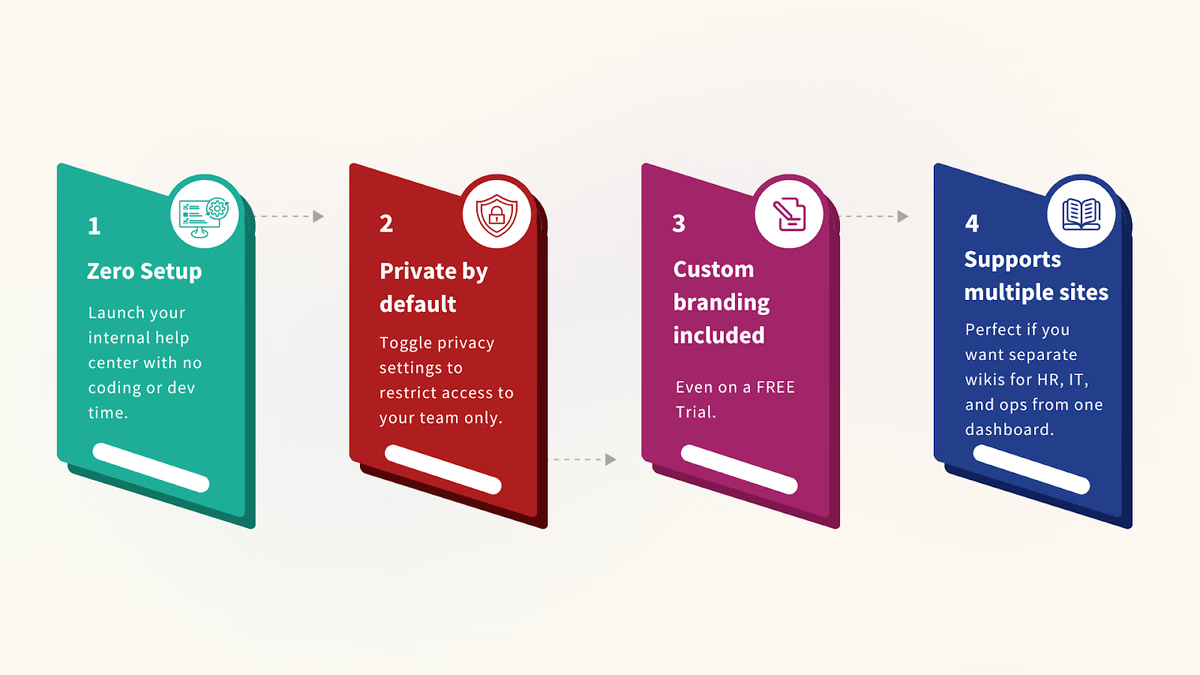
Why HelpSite fits the bill
You could roll your own wiki or fiddle with Notion permissions. Or—you could choose HelpSite and be live by lunch.
Step 2: Structure before you write
Create categories your team will actually use
Don’t dump everything into one long list of articles. Start with 3–5 clear categories based on actual team needs:
- HR & Onboarding (e.g., Benefits, PTO policy, new hire checklist)
- IT & Tools (e.g., How to reset VPN, approved software list)
- Ops & SOPs (e.g., Daily standup checklist, expense submission)
Step 3: Seed with must-have articles
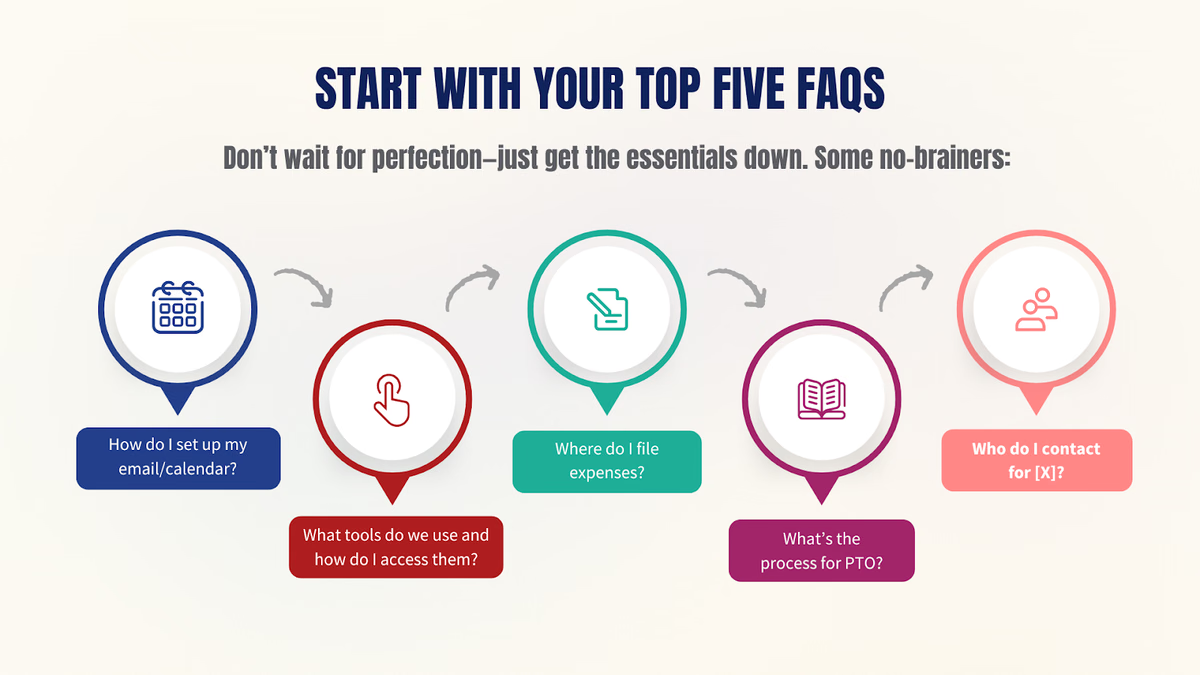
Time-saver: HelpSite includes Auto Write powered article drafting . Just write a title like “Submit an expense report” and it will generate a first draft for you.
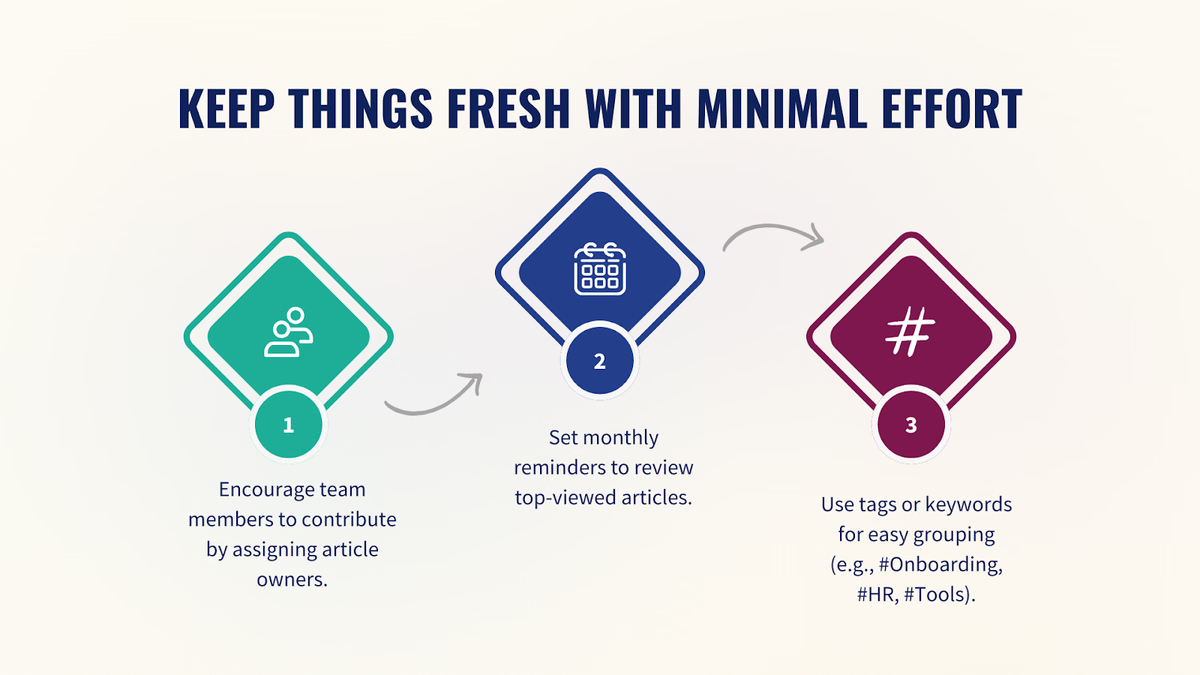
Step 4: Make it easy to find and maintain
Powerful search = happier teams
HelpSite's “search-as-you-type” engine helps team members find answers fast—before they’ve even finished typing. Unlike cluttered wikis, it’s built around Q&A from the ground up.
Micro-case: An internal IT team using HelpSite reported a 2× boost in agent productivity after documenting common requests.
Step 5: Roll it out—and get feedback
Share the link, not another Slack message
Once your internal help center is live, share it with your team:
- Add it to your onboarding docs
- Pin it in Slack or Teams
- Link from email signatures or your intranet
Then, listen. Are there missing articles? Is something unclear? HelpSite’s contact form captures feedback right from the page—no extra tools needed.
Coming soon: Real-time analytics will show which articles are doing their job (and which aren’t).
Your team doesn’t need another tool. They need fast answers.
Setting up an internal knowledge base shouldn’t take a sprint. With HelpSite, you can launch a clean, private hub for your team’s most-used info—today. No devs. No downtime. No chaos.